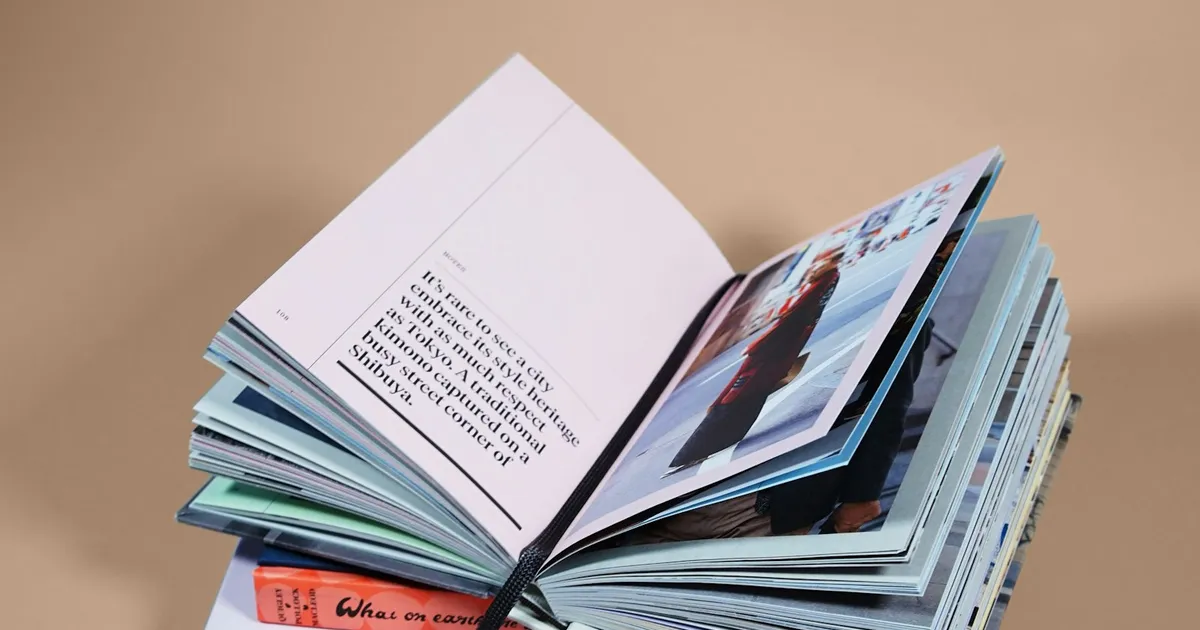
Kindle eBook formatting and print formatting require separate files because print layouts use a static, fixed page grid (PDF) to guarantee printing alignment, whereas eBooks use a fluid, reflowable format (EPUB) that dynamically scales text size and layout proportions to fit the reader's mobile screen. For a detailed comparison of EPUB vs PDF as file formats, see our EPUB vs PDF for KDP guide.
Uploading a print-ready PDF for your digital edition or vice versa will result in layout overlap errors and validation rejections. Designing both files to match their target mediums is critical for reader satisfaction.
In this guide, we compare eBook and print features, outline typography differences, and recommend layout design tools. Before starting, read our standard book trim sizes guide to choose your target size, then calculate your exact spine width once your interior page layout is finalized. Ensure your final file complies with print-ready PDF requirements and compare Word versus InDesign formatting workflows to see how design quality affects retail performance.
Why Can't You Use the Same File for Print Books and Kindle eBooks?
Print books use a fixed layout where every page element stays exactly where you put it. Page numbers, margins, headers, and images never move on the paper. In contrast, eBooks are fluid and reflowable, letting readers customize their reading environment.
Readers can change the font style, increase text size, adjust margins, and read on devices ranging from small phones to large tablets. A static print PDF uploaded to Kindle will shrink to fit the screen, making the text too small to read.
Feature | Kindle eBook | Print Book |
|---|---|---|
File Type | EPUB/KPF | |
Layout | Reflowable | Fixed |
Page Numbers | Usually no | Required |
Fonts | Device-dependent | Embedded |
Images | Responsive | Fixed resolution |
Bleed | Not used | Required for full-page art |
Need both print and eBook files? Our professional KDP formatting services can build custom, error-free files for both platforms. Contact us today to learn more.
Pro Insight
- Never upload a print-ready PDF file for your Kindle version.
- Design your print and digital versions as separate projects.
- Keep layouts responsive so they adapt to all screen sizes.
- Preview your files on multiple screens before you publish.
What Are the Main Layout Differences Between Print and eBook Formats?
The most obvious difference is that eBooks have no fixed pages or page numbers. Readers navigate using chapter hyperlinks or location markers. This means you must remove all running headers and footers.
Images must also be handled differently. Print layouts allow text wrapping around pictures, but eBooks require images to sit inline between paragraphs. This setup prevents images from overlapping text on narrow phone screens.
Typography is also simpler in digital versions. You cannot embed custom body fonts because Kindle devices default to user-selected typefaces. To learn about print font setup, check our guide on the best fonts for books.
Pro Insight
- Remove all running headers, footers, and page numbers.
- Position all images inline between paragraphs rather than wrapped.
- Avoid complex text boxes and multi-column designs.
- Use standard system fonts for digital body text.
Which Formatting Software Is Best for Creating Kindle EPUB Files?
For simple fiction, Vellum is a premier option for Mac users, while Atticus provides a strong web-based alternative for Windows. Both programs compile Word files into clean EPUB documents.
If your manuscript has tables, charts, or complex layouts, Adobe InDesign is the industry standard. However, InDesign has a steep learning curve and requires understanding of HTML export settings.
Regardless of the software you choose, always verify your final files. Use free previewer apps to inspect your work before submitting it to online retailers.
Pro Insight
- Use Vellum or Atticus for quick fiction conversions.
- Choose Adobe InDesign for complex layout requirements.
- Download Amazon's free Kindle Previewer to test files.
- Avoid using automated PDF converters, which corrupt code.
Why Do Drop Caps Break in Kindle eBooks?
Drop caps in printed books look beautiful because they fit into a fixed baseline grid. In eBooks, drop caps rely on CSS coding that often breaks on older e-readers or when readers adjust font sizes. A drop cap that looks perfect at 12pt font can overlap lines or create awkward white spaces at 24pt font.
If you want decorative elements, keep them simple. Use small, clean chapter titles rather than large graphics. Ensure your paragraph indents are set to a standard 0.25 inches.
Pro Insight
- Limit decorative drop caps in reflowable files to avoid styling errors.
- Set paragraph indents to a standard 0.25 inches.
- Do not use double returns to create vertical spacing.
- Verify that your chapter dividers display correctly on dark mode.
Why Do Page Numbers Work Differently on Kindle?
Because readers can change font size, line spacing, and margins, the text reflows continuously. A single page on a tablet might span three pages on a phone. E-readers use dynamic locations or percentage progress instead of static page numbers.
Trying to force fixed page numbers onto an eBook causes layout clutter and validation errors. For digital editions, remove all running page numbers, headers, and footers from your files.
Pro Insight
- Always strip print headers, footers, and page numbers for eBooks.
- Trust Kindle's location markers to handle reader progress.
- Link chapters in a logical Table of Contents so readers can navigate easily.
Why Does Image Placement Shift on E-Readers?
In print layouts, you can wrap text around an image or position it at the top or bottom of a page. In reflowable eBooks, text wraps do not scale correctly. Images must be set inline so they stay with the surrounding text without overlapping or shifting to random pages.
If your book features complex charts or diagrams, ensure they are optimized for inline display and test them on multiple screen sizes.
Pro Insight
- Always insert images as inline elements.
- Verify image dimensions and keep file sizes under 5MB to avoid KDP delivery fees.
- Ensure high contrast in illustrations for e-ink screens.
Why Do Print PDFs Fail as Kindle eBooks?
Print-ready PDFs lock everything into place. When uploaded to KDP as an eBook, Amazon's converter attempts to extract the text, which results in broken paragraphs, lost headers, garbled page numbers, and out-of-order images. You must submit a clean, validated EPUB file for digital editions.
Read our companion guide on EPUB vs PDF for KDP submission to understand the difference between these two formats.
Pro Insight
- Never upload a PDF for a reflowable Kindle eBook.
- Use print-ready PDFs strictly for print formats like paperback and hardcover.
- Read our comprehensive guide on [what is a print-ready PDF](/blog/what-is-print-ready-pdf) for print layout tips.
When Does It Make Sense to Hire a Professional eBook Formatter?
If your book is a standard novel, you can likely format it yourself using modern tools. However, complex non-fiction requires a professional formatter.
Books with tables, callout boxes, footnotes, or illustrations need custom CSS coding to display correctly on all screens. A professional formatter ensures your pages look polished and readable on every device.
Hiring an expert also saves time and prevents upload rejections. If you want a stress-free launch, outsourcing the technical work lets you focus on marketing.
Ready to launch? Save time and avoid rejections. Get a professional formatting quote today.
The Takeaway
Treating your eBook as a unique layout project ensures a professional reading experience. Avoid trying to force a print design onto a digital screen. By keeping your layout clean and responsive, your eBook will look excellent on any device.
Need help formatting your Kindle or print book? Contact our design team today for a free consultation, or browse our portfolio to see our work.
Frequently Asked Questions
Sources & Technical References
Related reading

KDP Formatting
EPUB vs PDF for KDP: Which File Format Should You Submit?
7 min read
Binding/Specialty
Children's Picture Book Formatting for KDP: 2026 Complete Guide to Bleed, Trim & Fixed Layout
9 min read

KDP Formatting
How to Choose the Perfect Book Trim Size: 2026 KDP & IngramSpark Guide
12 min read
Explore our eBook & print formatting, read EPUB vs PDF for KDP, see portfolio, or view transparent pricing.